

To collect and view feedback, you must enable feedback from the Add-ons page in your dashboard.
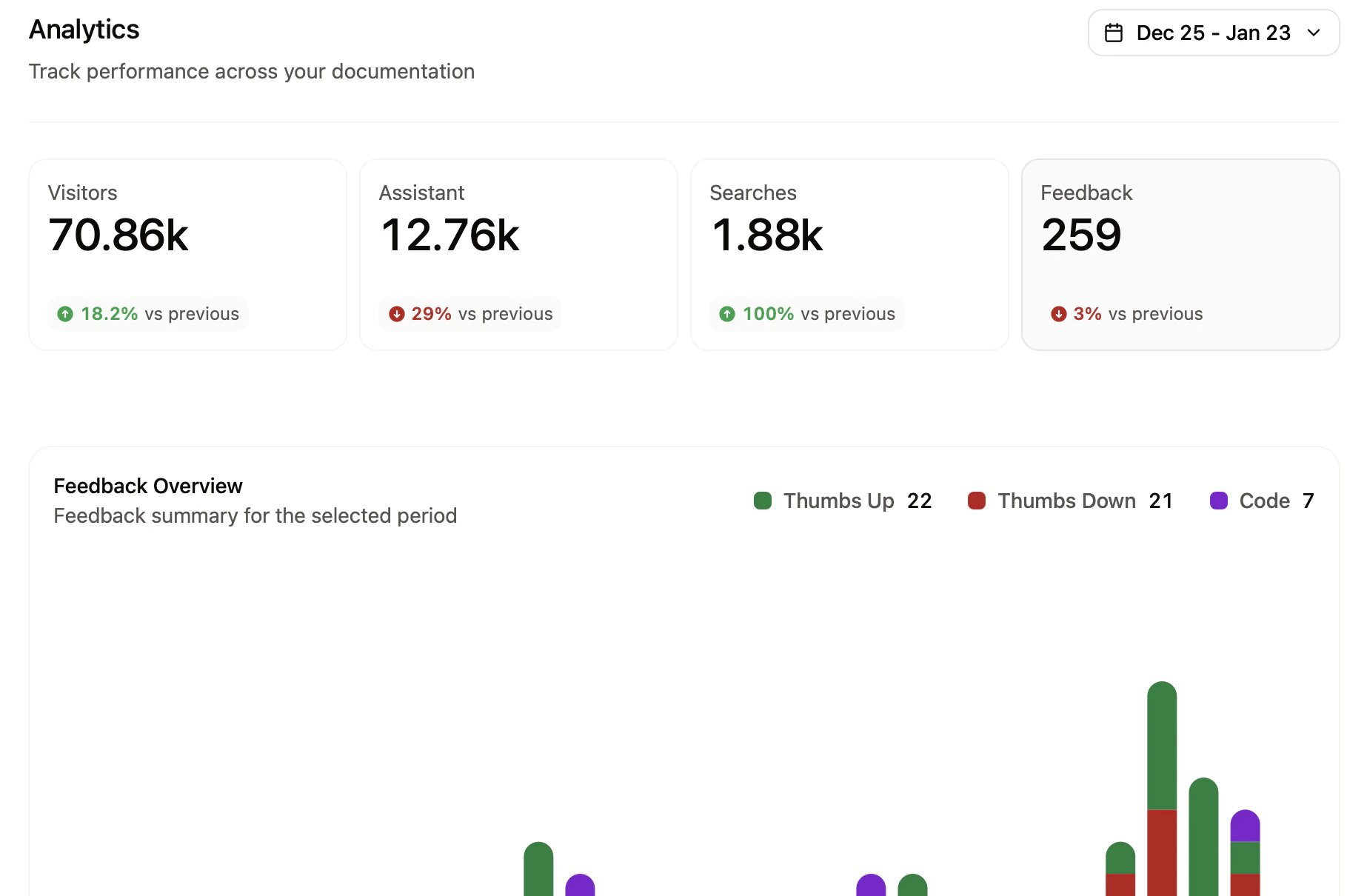
Feedback types
Contextual and code snippet feedback are in beta. To enable them for your documentation site, contact our sales team.
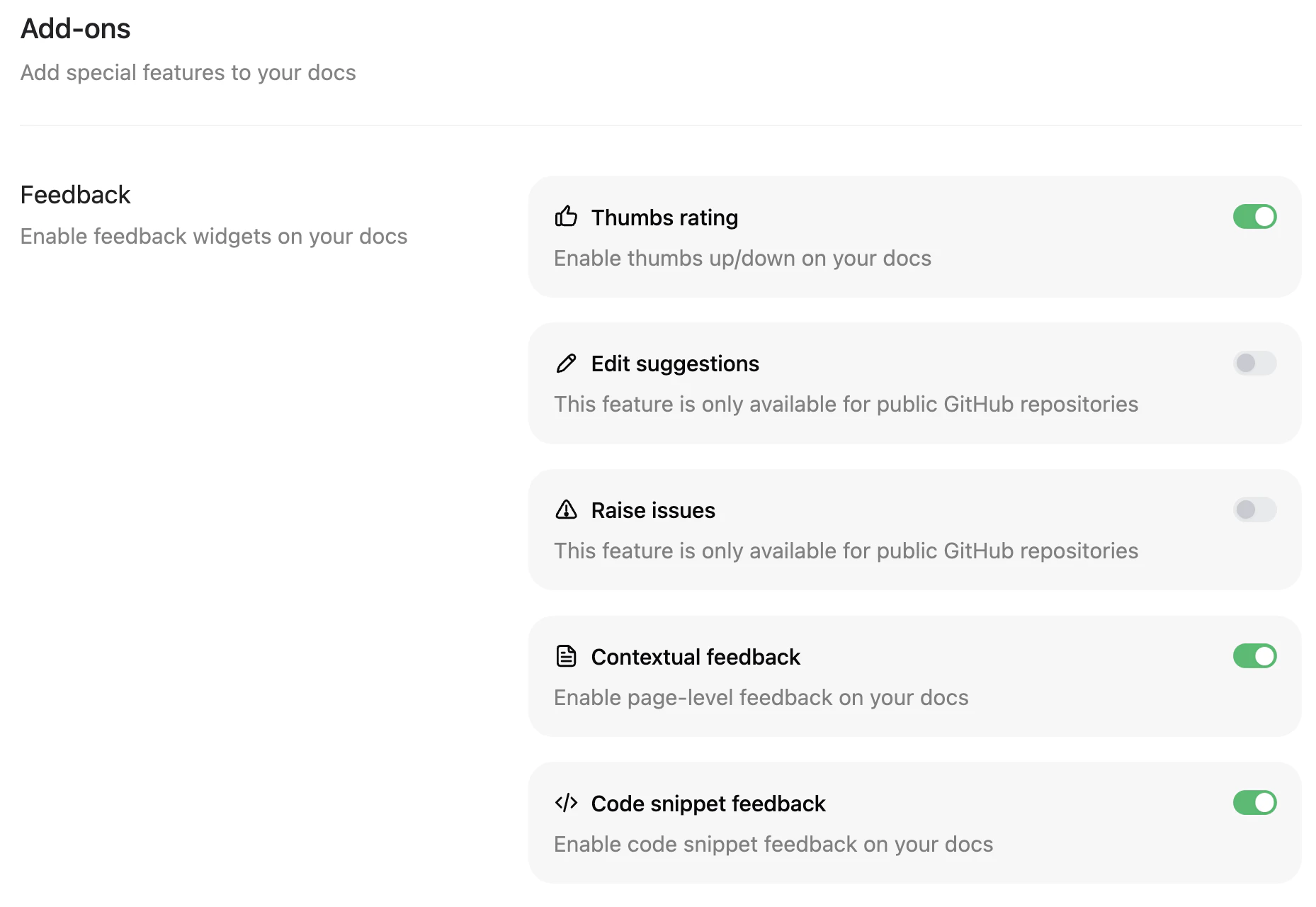
- Thumbs rating: Simple thumbs up/down voting to gauge overall satisfaction with pages.
- Edit suggestions: Allow users to suggest edits to your documentation. Only available for public GitHub repositories.
- Raise issues: Allow users to create GitHub issues directly from your documentation. Only available for public GitHub repositories.
- Contextual feedback: Free form feedback about the content of a page.
- Code snippet feedback: Feedback specifically on code snippets.
Collect email addresses
Enable email collection so users can optionally provide their email address when submitting feedback.- Navigate to the Add-ons page in your dashboard.
- Enable the Collect reader emails toggle under the feedback settings.
- Optionally add a privacy disclaimer about how your team uses collected emails.
If you disable telemetry in your
docs.json file, feedback features are not available on your documentation pages.Manage feedback
For contextual and code snippet feedback, you can set the status of a piece of feedback and add internal notes to track your work resolving user feedback.Change feedback status
Select the status beside a piece of feedback to mark it as Pending, In Progress, Resolved, or Dismissed. Best practices for setting feedback statuses:- Pending: Feedback is awaiting review.
- In Progress: Work is in progress to address the feedback.
- Resolved: Feedback has been resolved.
- Dismissed: Feedback is irrelevant or inaccurate.
Filter by status
Use the Filters menu to control which feedback displays. Clear a status to hide all feedback with that status. By default, all feedback types display.Filter by type
Select between Ratings by page, Detailed feedback, and Code snippets depending on the information you want to analyze.- Ratings by page: See which pages have the most positive and negative feedback. Use this quantitative data to identify pages that users find most and least helpful.
- Detailed feedback: Review the open feedback users leave on pages to identify targeted improvements to specific pages.
- Code snippets: Review the open feedback users leave on code snippets to identify targeted improvements to specific blocks of code.
Add internal notes
Click a piece of feedback to add an internal note. These notes are only visible to people with access to your dashboard. Use notes to add information for collaboration, link relevant support or engineering tickets, or remember any other useful information.Use feedback data
Review your feedback data to:- Identify successful content: Pages with the most positive feedback show what works well in your documentation.
- Prioritize improvements: Pages with the most negative feedback indicate what content might need attention.
- Take action: Make documentation updates based on direct user feedback.